top of page

1. Login to your account. Click on the avatar picture on the top right. A drop-down menu will appear. Select “Settings”

1. Login to your account. Click on the avatar picture on the top right. A drop-down menu will appear. Select “Settings”
1. Login to your account. Click on the avatar picture on the top right. A drop-down menu will appear. Select “Settings”

How to Cancel Your Membership
Depending on how you paid for your subscription, you will have different steps to cancel. If you DID NOT USE PAYPAL, please use the following steps to cancel your subscription:
If you used Paypal, watch the following video or follow the next steps to cancel your Konexion membership.
1. Login to your account. Click on the avatar picture on the top right. A drop-down menu will appear. Select “Settings”

1. Login to your account. Click on the avatar picture on the top right. A drop-down menu will appear. Select “Settings”
1. Login to your account. Click on the avatar picture on the top right. A drop-down menu will appear. Select “Settings”

1. Login to your account. Click on the avatar picture on the top right. A drop-down menu will appear. Select “Settings”
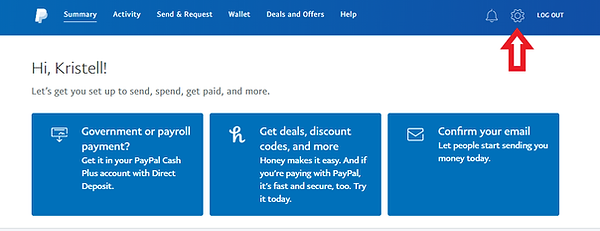
1. Login to your account. Click on the avatar picture on the top right. A drop-down menu will appear. Select “Settings”

1. Login to your account. Click on the avatar picture on the top right. A drop-down menu will appear. Select “Settings”

1. Login to your account. Click on the avatar picture on the top right. A drop-down menu will appear. Select “Settings”

1. Login to your account. Click on the avatar picture on the top right. A drop-down menu will appear. Select “Settings”

Anchor 1
bottom of page